
Cline
在 Cline 中通过 OpenAI Compatible、Anthropic 和 Google Gemini 接口接入 GPT、Claude 与 Gemini
Cline 接入第三方 API 时,可以在供应商设置中选择接口类型,填写服务地址、API Key 和模型 ID,在 VS Code 中使用模型处理代码任务。
安装 Cline
打开 VS Code,进入左侧的 扩展 页面,搜索 Cline,安装发布者为 Cline 的扩展。
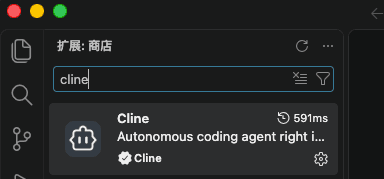
安装后,点击左侧的 Cline 图标,进入供应商配置页面。已完成初始设置时,点击 Cline 面板右上角的齿轮,进入 Settings → API Configuration。
准备 API Key
前往 AIGoCode 模型广场,选择对应分组并创建 API Key:
| 接入模型 | API Key 分组 |
|---|---|
| GPT | Codex(可外接) |
| Claude | Claude Code(可外接) |
| Gemini | Gemini |
GPT 接入
将 API Provider 设为 OpenAI Compatible,填写以下内容:
| 字段 | 填写内容 |
|---|---|
| API Provider | OpenAI Compatible |
| Base URL | https://api.aigocode.dev |
| OpenAI Compatible API Key | Codex(可外接)分组的 API Key |
| Model ID | gpt-6-astra |
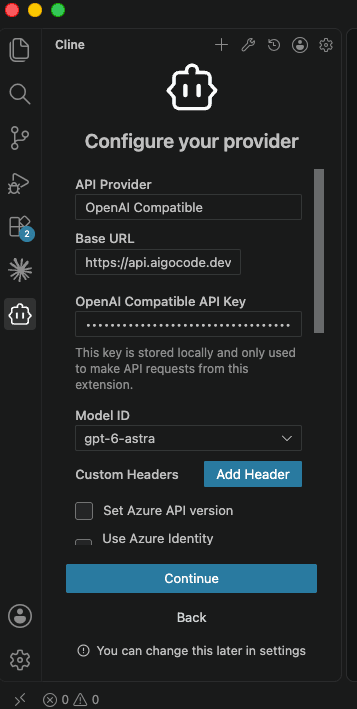
首次配置时,点击 Continue;从设置页修改时,点击 Done 保存。
Claude 接入
在 API Configuration 中,将 API Provider 设为 Anthropic,填写 API Key,勾选 Use custom base URL 并设置服务地址。
| 字段 | 填写内容 |
|---|---|
| API Provider | Anthropic |
| Anthropic API Key | Claude Code(可外接)分组的 API Key |
| Use custom base URL | 勾选 |
| 自定义服务地址 | https://api.aigocode.dev |
| Model | claude-opus-5-5 |
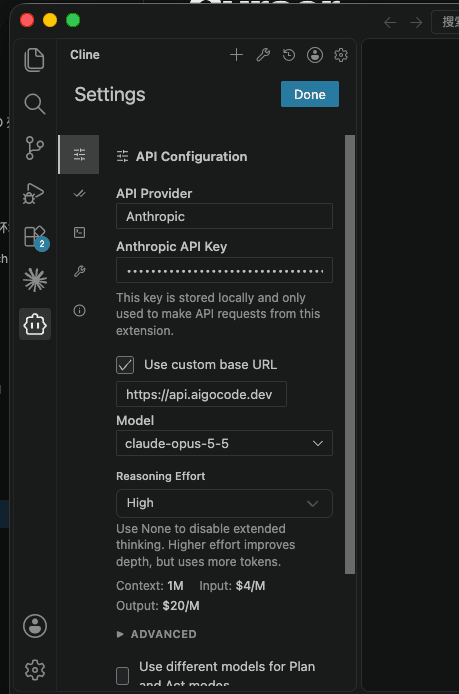
点击右上角的 Done 保存设置。
Gemini 接入
在 API Configuration 中,将 API Provider 设为 Google Gemini,填写 API Key,勾选 Use custom base URL 并设置服务地址。
| 字段 | 填写内容 |
|---|---|
| API Provider | Google Gemini |
| Google Gemini API Key | Gemini 分组的 API Key |
| Use custom base URL | 勾选 |
| 自定义服务地址 | https://api.aigocode.dev |
| Model | gemini-4-argon |
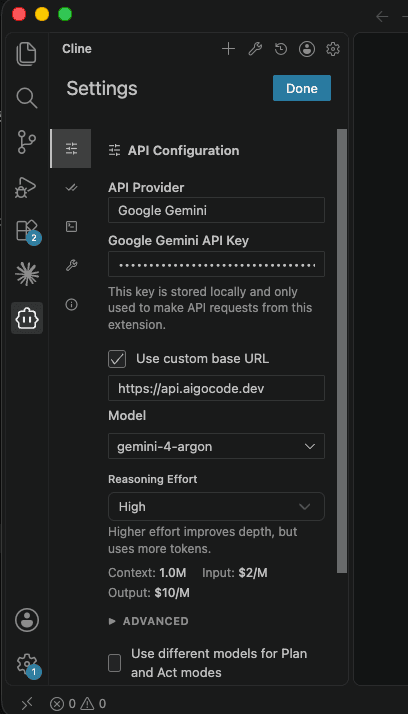
点击右上角的 Done 保存设置。
开始对话
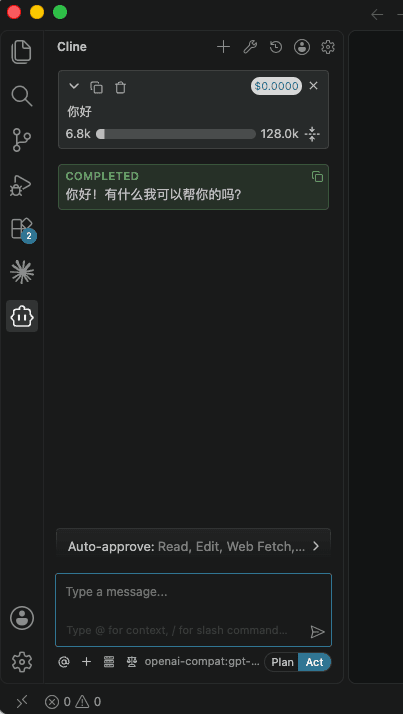
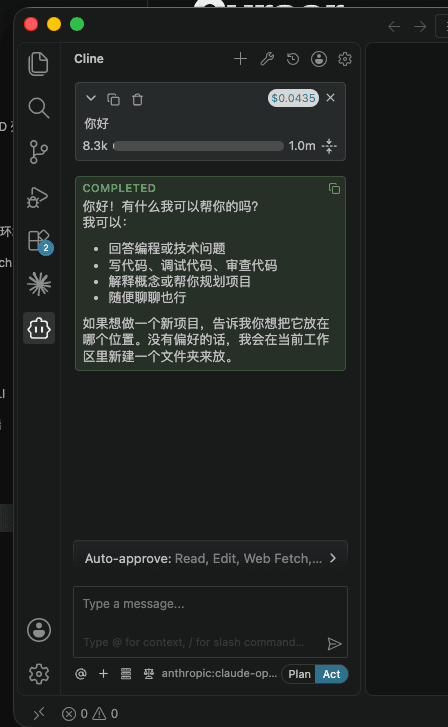
返回 Cline 对话页面,确认输入框下方显示刚配置的供应商和模型,发送一句“你好”。
GPT 对话
Claude 对话
Gemini 对话
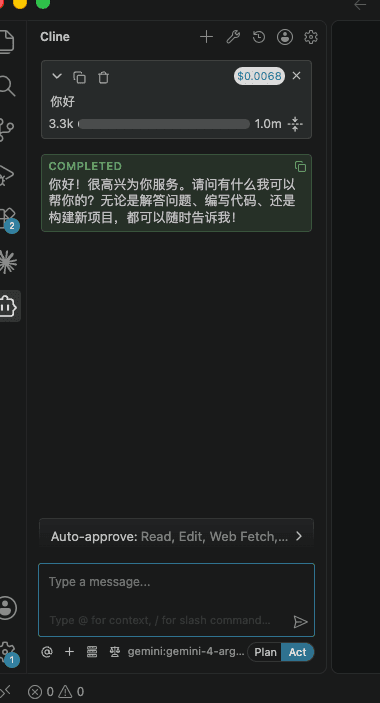
收到回复后,可以继续输入代码任务,并在 AIGoCode 使用统计查看请求记录。
切换模型时,在供应商设置中更新模型 ID,并使用对应分组的 API Key。完整模型 ID 见模型名称列表。